How it works
From your screen to somebody’s mailbox
Four steps: design the card, choose who gets it, review and launch, then watch it land. If all you want is to mail one person, you can skip every bit of that — there’s a one-off send that takes about a minute.
Design it in the Studio
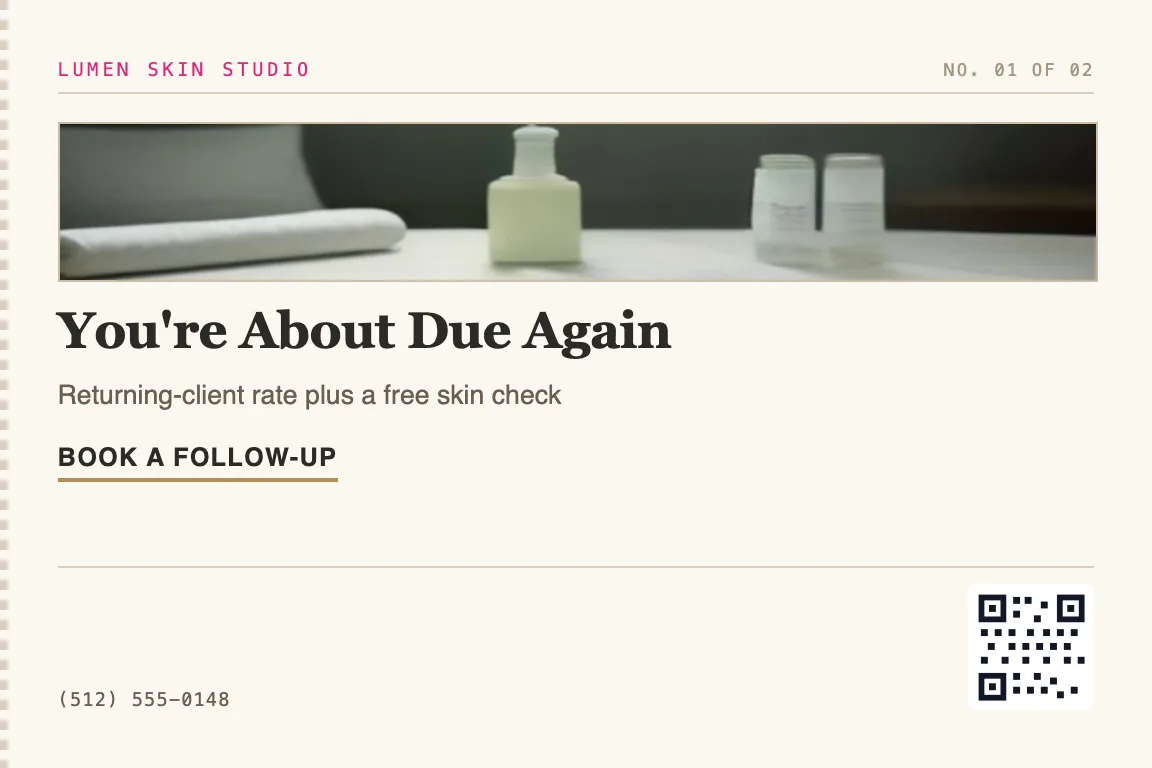
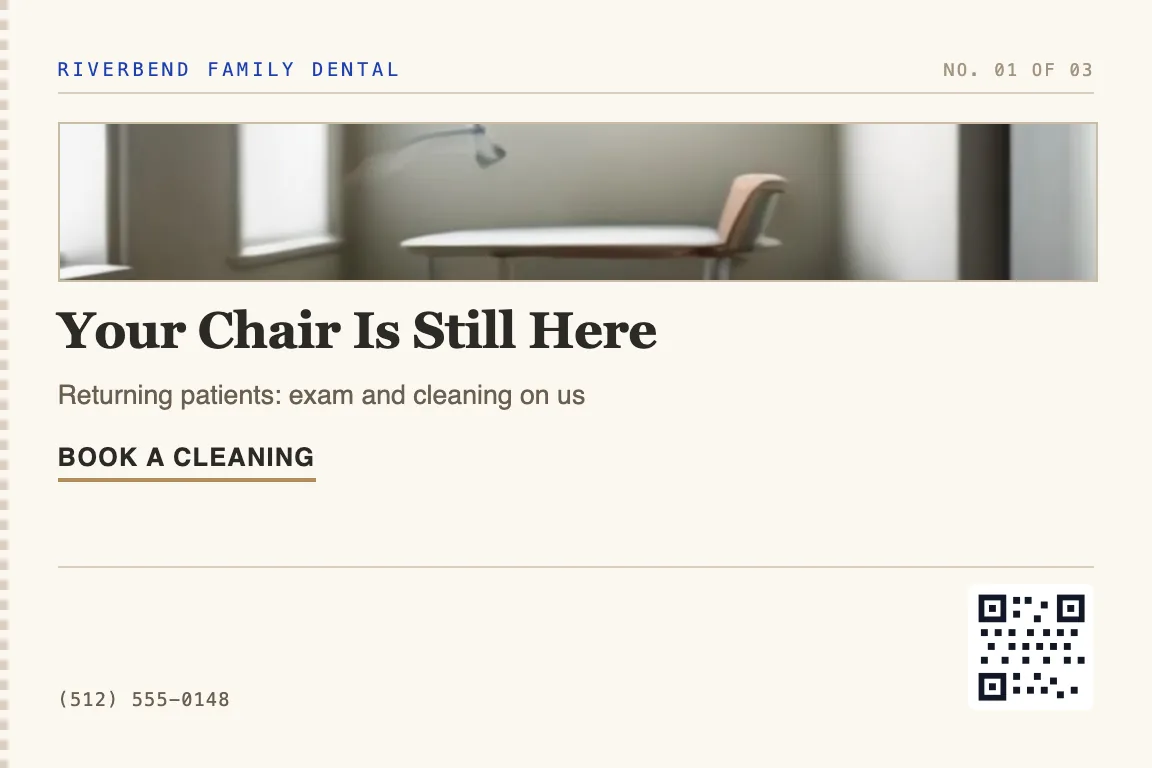
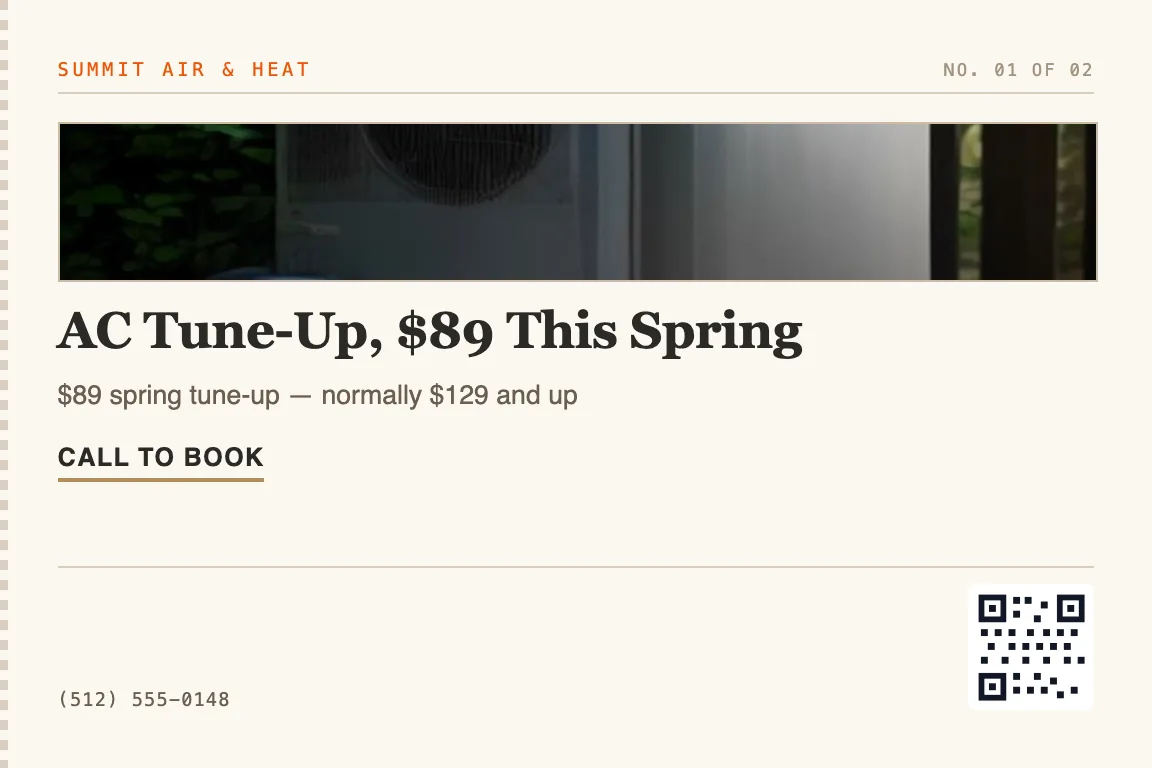
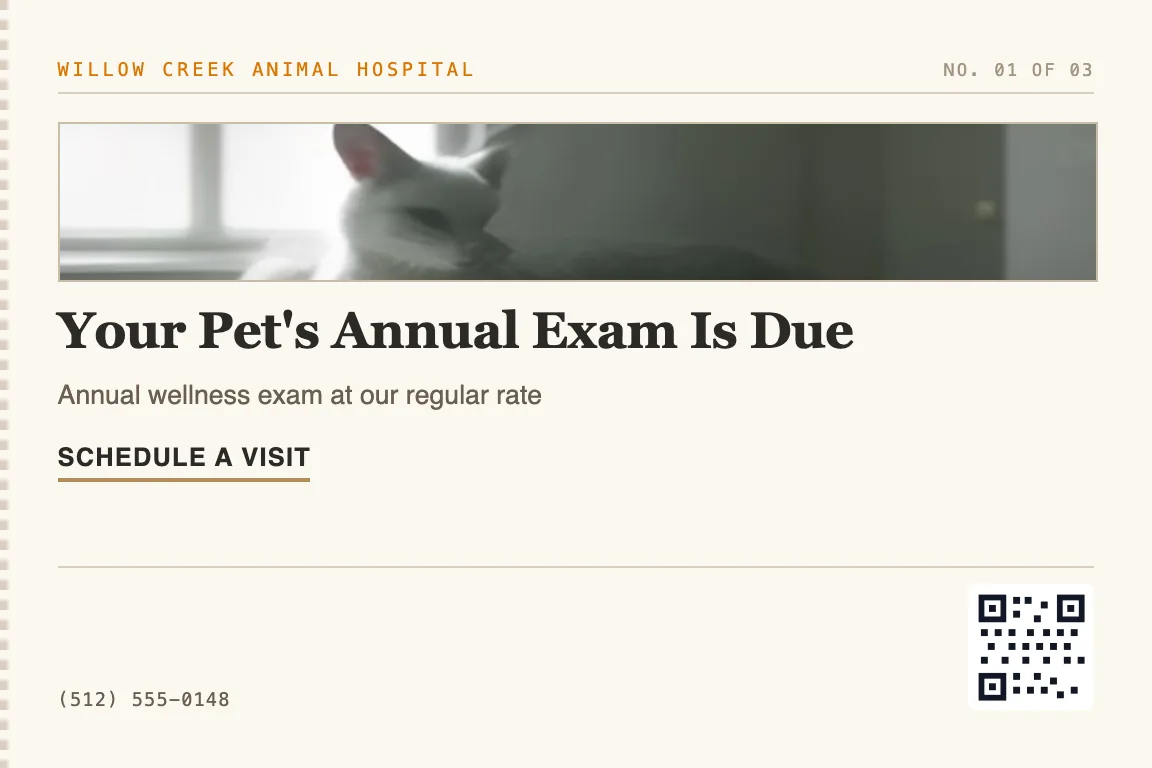
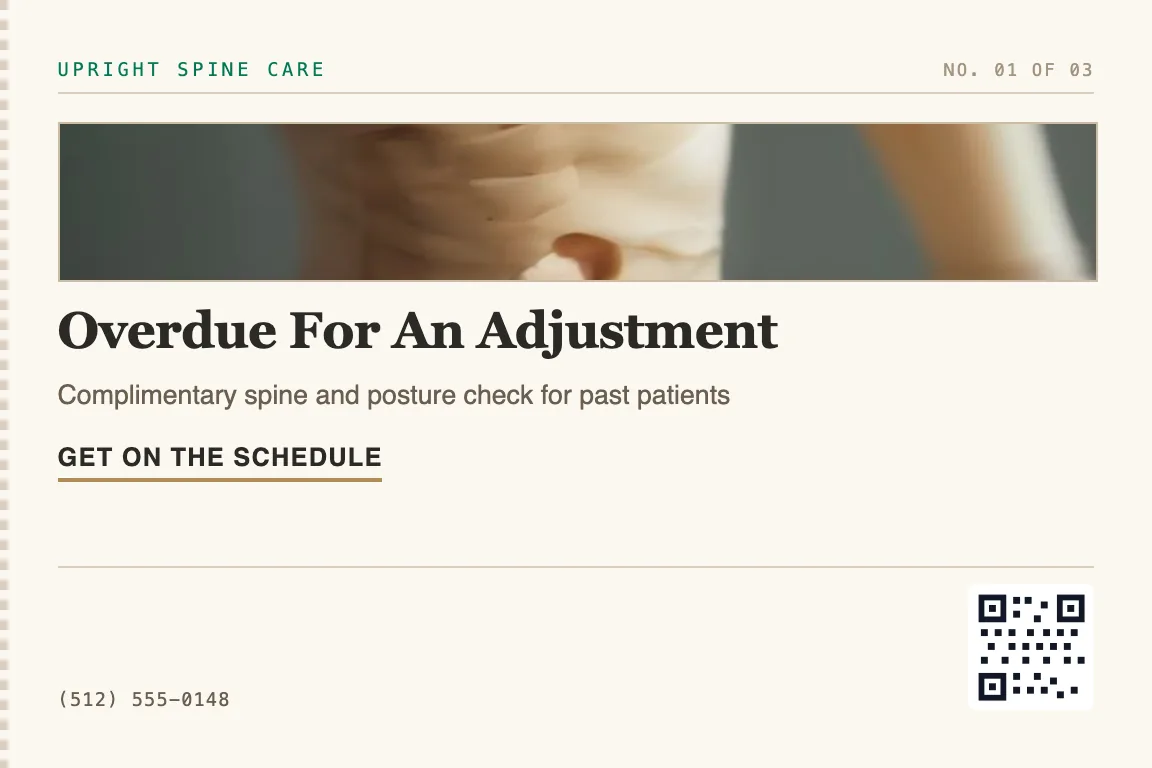
Open the Card Designer and start from a template written for your trade, or from an empty card. Type the headline and the offer. Add your logo and your colors. Put a QR code wherever you want it. Then look at the card the way it will actually print, front and back, before anything goes out.
- Templates written for specific trades
- Your logo, your colors, your return address
- A QR code on every card, pointing to a link unique to that recipient
Point it at the right doors
If you have a list — lapsed patients, past customers, whoever you’re trying to reach — upload it. If you don’t, build one off a map: type in a ZIP code, or draw a circle or a shape, and we fill in every mailable address inside it. Those go to the current resident rather than to a name, and they come out of the US National Address Database, which covers over 60 million addresses. Either way we clean and check the addresses first, so the cards land instead of coming back.
- Upload your own list, or build one off a map
- Type in a ZIP or draw an area — we fill in the addresses
- Addresses get checked before they mail, and lists can be reused and split up across campaigns
Neighborhood mailing is occupant mail. We fill in the doors inside the area you picked — not names, not demographics.
Review and launch
This part is one screen, not a stack of wizards. Proof the design, set the send date and your tracking links, confirm, launch. After that we print the cards in full color, put first-class postage on them, and take them to the post office.
- One screen — proof, schedule, confirm, send
- Full-color printing and first-class postage are in the price
- Send today, or pick a date weeks out
Track every postcard
Every card goes out with a QR code pointing at a link that belongs to that one recipient. So when a scan comes in, you know which card it was and which address it went to. Every card you send — part of a campaign or not — also lands in one Postcards list with a status against it: printing, in transit, out for delivery, delivered, or returned. Click any card to see its timeline.
- See who scanned, when, and where they went next
- A delivery status on every card, in one list
- Filter by status, source, or date, and open any card for its timeline
No campaign required
Just one postcard? Send it in a minute.
Not every mailing needs a list and a launch. Pick a contact — from the sidebar (“Send a postcard”), the dashboard, the contacts list, or the contact’s own page — choose a design, look at the front and back exactly as they’ll print, and send. It comes off your wallet like anything else, and it turns up in the same Postcards list as your campaign mail.
- Send from the sidebar, the dashboard, the contacts list, or a contact’s page
- See the front and the back before you send
- Tracked through delivery, same as campaign mail
The cadence
Design · Target · Launch · Track
Design
Build the card and proof it in the Studio.
Target
Point it at a list you uploaded, or an area you drew.
Launch
One screen to confirm, then we print and mail.
Track
Watch the deliveries and the scans come in.
Send your first card
Open an account, design a card, and have us mail a real one to your own address before you fund a drop.